01Getting started
The Vault is a single program — no installer. Put it anywhere and run it.
- Drop
TheVault.exeinto any folder, e.g.C:\Games\TheVault. - Double-click it. Windows shows a User Account Control prompt — click Yes.
- The first run asks you to activate with a license key (next section).
- Once activated, click SCAN DRIVE, pick your games drive, and your library fills in.
02Activating your license
The Vault is licensed per PC. Until it's activated, the only thing you can do is close it.
- Click COPY ID to copy your machine ID (
VLT-XXXX-XXXX-XXXX-XXXX). - Send that machine ID to receive your license key.
- Paste the key and click ACTIVATE — or use IMPORT FILE… for a
.vltfile. - Done. It stays activated on this PC.
03Adding games
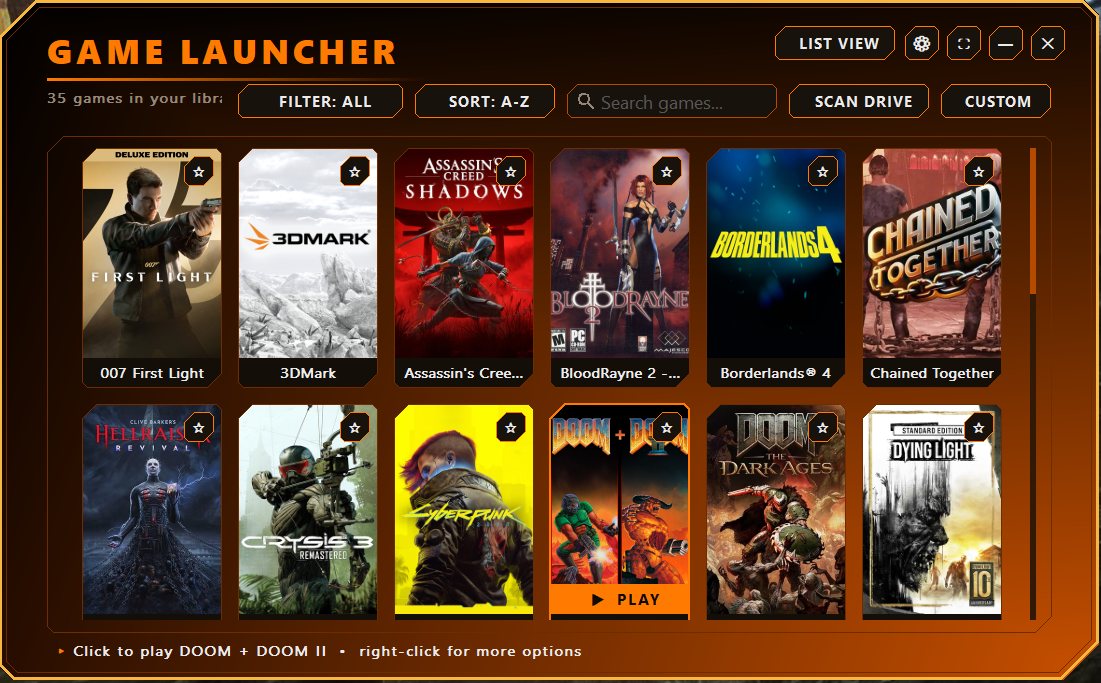
Scan a drive (recommended)
Click SCAN DRIVE and pick a drive. The Vault searches the usual game folders and adds everything it finds — Steam games get their official names and art.
Add one yourself
Click CUSTOM and browse to a game's .exe. The Vault works out the name and folder for you.
New installs, automatically
Scanned drives are watched — install a new game and it's added on its own, with a notice (or a tray pop-up if hidden). Toggle this in Settings.
04Launching games
Launch from the LAUNCH button, a cover in grid view, or the detail page.
Steam games
Launch through Steam — overlay, achievements and cloud saves work. Steam starts automatically if it isn't open.
Ubisoft games
The Vault starts Ubisoft Connect for you first, then launches — no "Connect must be running" errors.
Everything else
Runs the exe directly. Set a game to run as admin or add launch options in Edit.
05The game detail page
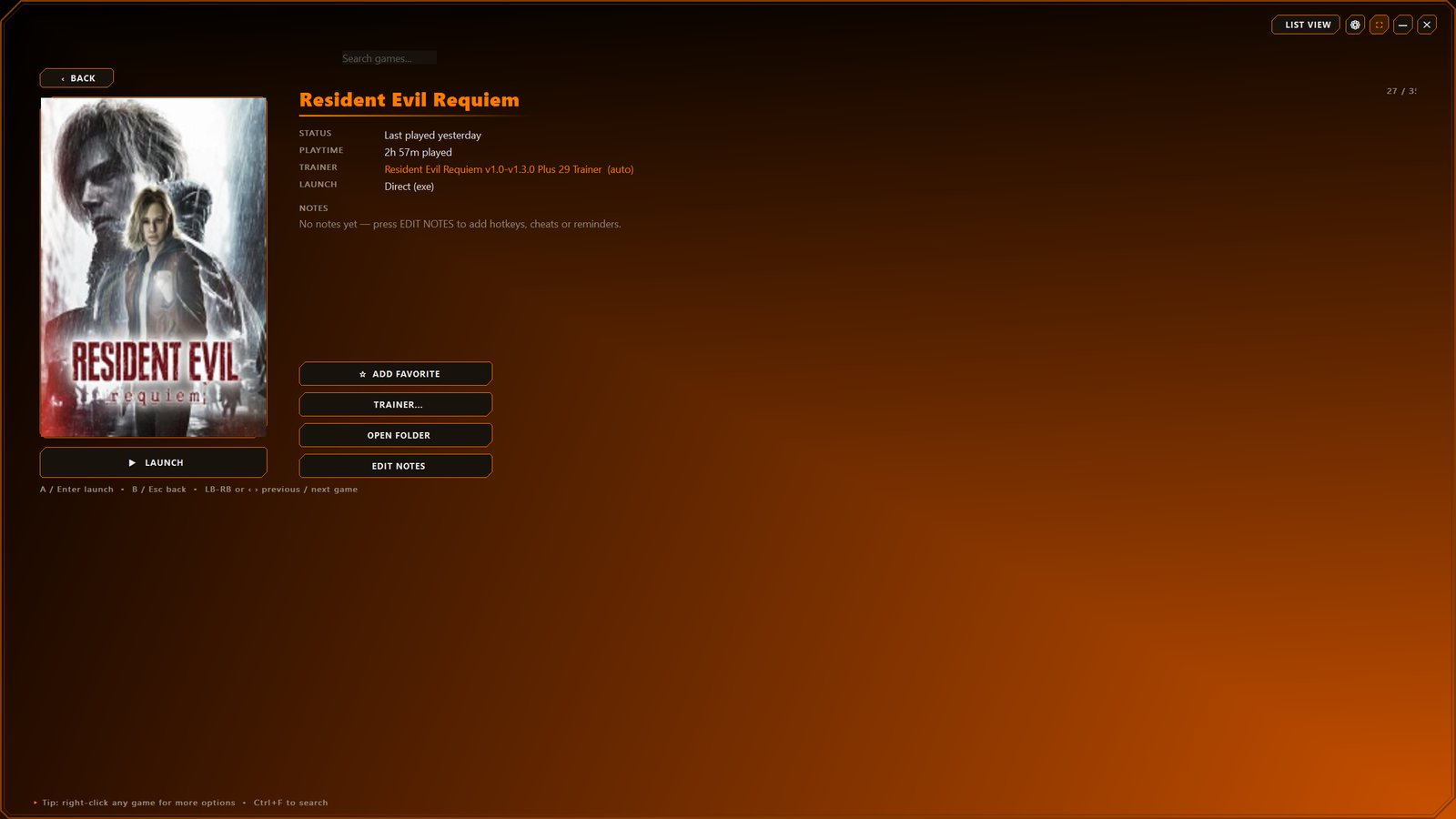
Click any game (or press A / Enter) to open its page: big art, a large LAUNCH button, playtime, last played, trainer status and your notes.
- Notes — keep hotkeys, cheat values or reminders per game. Click EDIT NOTES.
- Flip between games — bumpers on a controller, or ← →, page through without leaving the page.
- Quick actions: Favorite, Trainer…, Open folder, Back.
06Trainers
Setting up
- Open Settings → Open trainers folder (
Documents\GameLauncher\trainers). - Drop your trainers in — a file directly in the folder, or each in its own subfolder.
- Make sure the game's name is in the trainer's file or folder name.
Automatic matching
Each game looks for a trainer whose name contains its name — spaces, case and symbols don't matter. If you have both Dying Light and Dying Light The Beast, the Beast trainer only matches the Beast. Supported: .exe, .ct, .cetrainer, .lnk, .bat, .cmd.
When you launch
The trainer opens first, then the game starts once it's ready — so the trainer never steals focus from the game.
Choosing / overriding
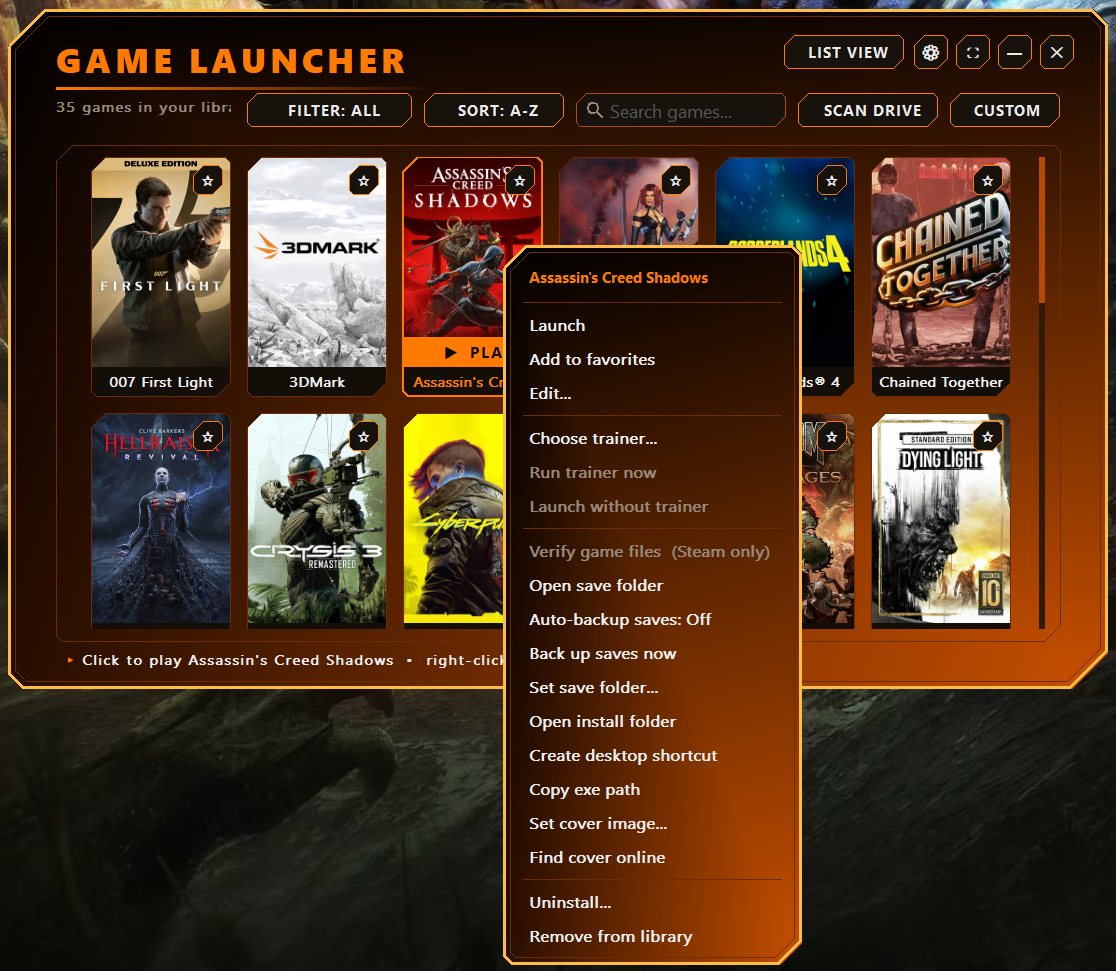
Right-click a game → Choose trainer… to pick Automatic, a specific trainer, or No trainer. Also: Run trainer now and Launch without trainer.
07Save backups
Never lose a save to corruption again.
Right-click a game → Auto-backup saves. When the game closes, its save folder is copied to Documents\GameLauncher\GameSaves\<Game>\<timestamp>. Each exit is its own backup, so a bad save never overwrites a good one — the newest several are kept.
- If the save folder can't be found, you'll be asked to pick it.
- Back up saves now and Set save folder… are in the right-click menu.
08Cover art
Missing covers are fetched online automatically (on by default — toggle in Settings). You can also right-click → Find cover online, or Set cover image… to use your own picture. Your own image always wins.
09Views, favorites & search
Filter button
Cycles All → Favorites → Unplayed (backlog) → Recently added.
Sort
A–Z or most recently played.
Search
Type to filter. Ctrl+F focus, Esc clear.
Grid / list
Switch between cover grid and detailed list.
Star a game to pin it to the top; the favorites view shows only starred games.
10Console mode & controller
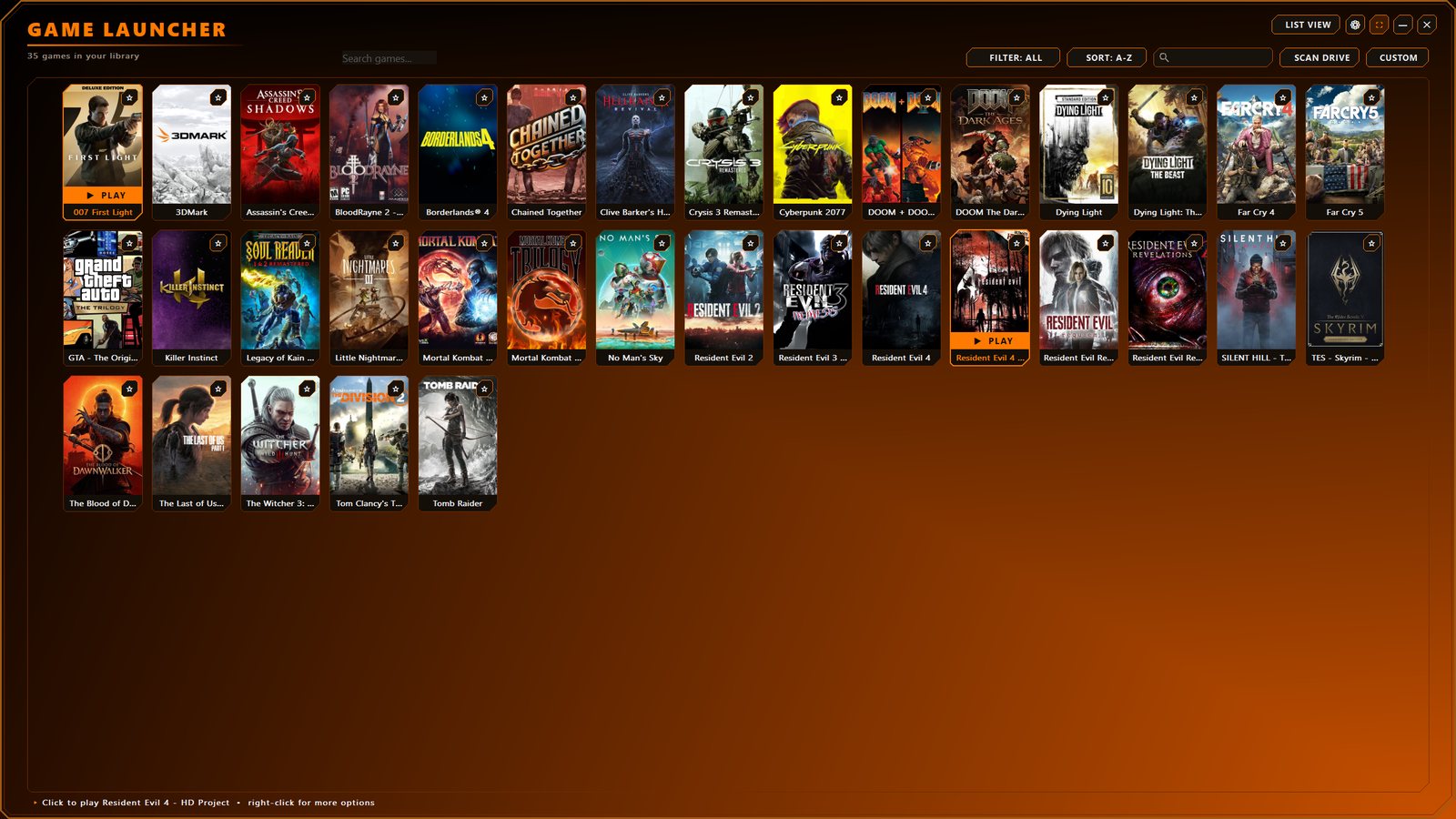
Go fullscreen and run the whole launcher from the couch with a controller.
Enter it with the ⛲ fullscreen button, F11, or the controller's Start / Y.
Browsing the library
On the detail page
11Settings
Click the ⚙ gear in the top-right. Click an option to change it; the window stays open until Done.
| Setting | What it does |
|---|---|
| Start with Windows | Launches The Vault in the tray at sign-in. |
| Hide to tray while playing | Tucks away while a game runs, back when it closes. |
| Auto-detect new installs | Adds newly installed games automatically. |
| Ask before launching | The "launch this game?" confirm on clicks. |
| Auto-find covers online | Fetches missing box art automatically. |
| Game starts after trainer | Wait time after the trainer opens before launching. |
| Import Steam playtime | Pulls in the hours Steam recorded. |
| Manage excluded games | See & undo games hidden from scans. |
| Find missing covers | Run a full cover lookup now. |
| Open covers / trainers folder | Quick access to those folders. |
12Removing & uninstalling
Remove from library
The ✕ on a game (or right-click → Remove) offers Remove (a future scan can re-add it) or Remove + don't scan back. The game itself is never deleted.
Excluded games
Anything kept off scans shows in Settings → Manage excluded games, where you can allow it again.
Uninstall
Right-click → Uninstall removes the game from your PC. Once it's gone it leaves your library on its own — and it's not excluded, so reinstalling brings it back.
13Keyboard shortcuts
| Key | Action |
|---|---|
| Ctrl+F | Jump to search |
| Esc | Clear search / back out / close |
| F11 | Toggle fullscreen console mode |
| ← → ↑ ↓ | Move the selection (flip games on the detail page) |
| Enter | Open the detail page / launch |
14Where your data is stored
Everything lives in your Documents folder:
| Path | Contents |
|---|---|
GameLauncher\games.txt | Library, playtime, favorites, notes & settings |
GameLauncher\covers\ | Your own & downloaded cover images |
GameLauncher\trainers\ | Your trainers |
GameLauncher\GameSaves\ | Timestamped save backups |
GameLauncher\license.dat | Your activation key |
GameLauncher folder. (A key only works on its own PC, so you'll re-activate on a new machine.)15Troubleshooting
A game wasn't found by the scan
Add it with CUSTOM. If it was removed with "don't scan back," re-allow it in Manage excluded games.
My trainer isn't auto-matching
Check it's in the trainers folder and the game's name is in the trainer's file/folder name. Make sure the game isn't set to No trainer.
The game starts before the trainer loads
Increase Settings → Game starts after trainer.
My license won't activate / it's asking again
Copy the whole key. A key only works on the PC it was made for; a Windows reinstall or new drive changes your machine ID.
A Steam game's playtime looks wrong
Run Settings → Import Steam playtime now.